Open Operations on mobile
Use the native Rostermind app for the Operations workflows offered on your device. The older PWA mainly directs users to the app stores.
Before you start
Install the app only through Rostermind’s official Google Play or App Store links. Available screens depend on the version, organization and permissions.
Steps
- From the official mobile entry point, follow the link to your device’s store. If the redirect fails, ask support for the official link.
- Open the app and sign in with your usual account. Check the environment and organization before continuing.
- View your schedule and open an assignment to check its time, destination and available actions.
- For leave, availability or time tracking, use the offered workflow and check the saved result after confirming.
Example and expected result
Fictional example: Alex opens Tuesday’s assignment and checks the address before leaving. A time-tracking action depends on the assignment and permissions; installing the app does not grant access.
If something goes wrong
After an interruption, refresh the state before repeating an action. For a missing feature, record the app version and phone operating system. Offline use, maps and notifications require separate checks; do not assume every entry synchronizes automatically.
Continue
Schedule example
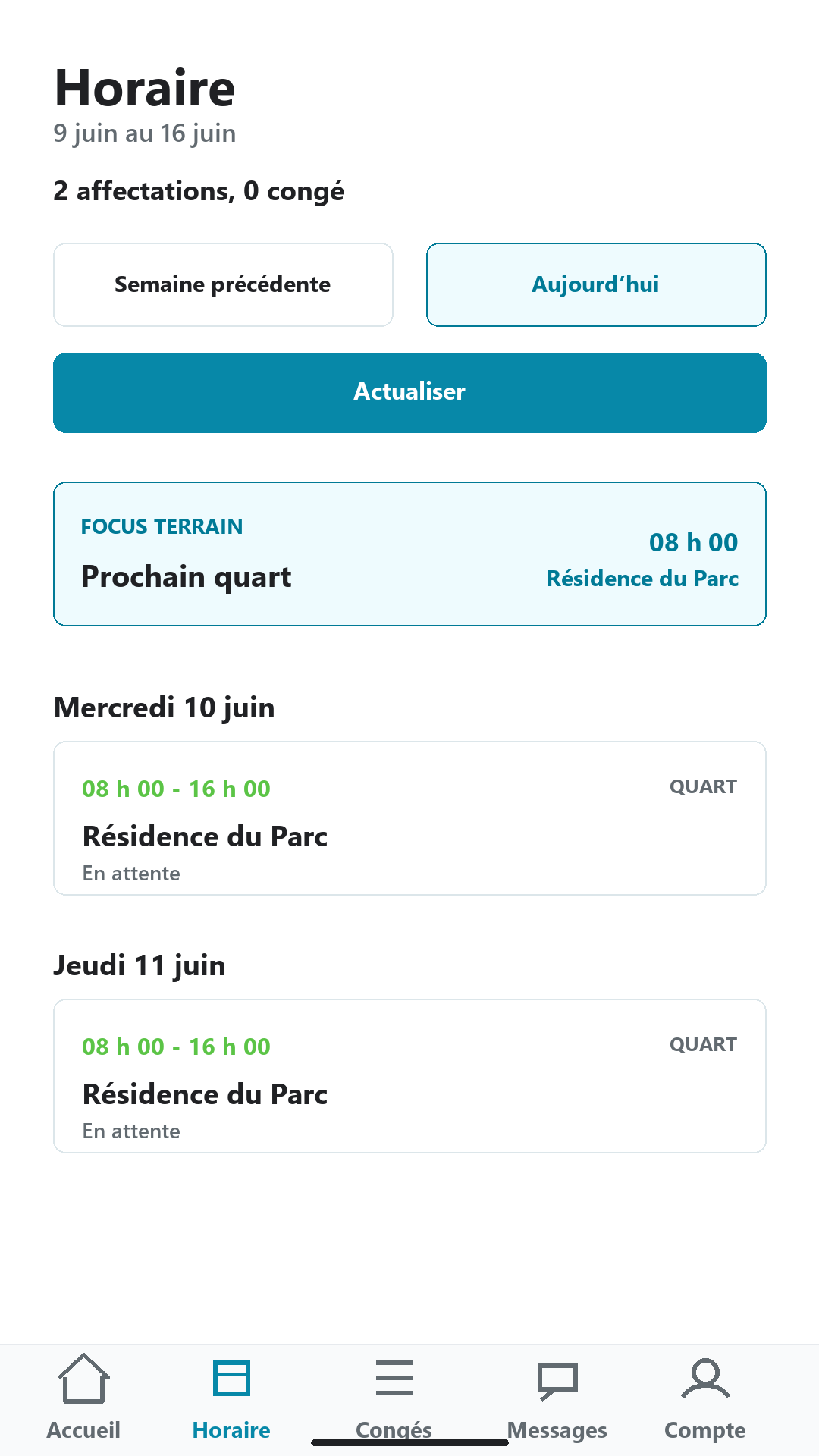
Screenshot already published on the official Google Play listing, consulted on October 17, 2026. Its version is unidentified; your screen may differ. This is not a new capture of your organization.