How to use operational dashboard indicators
Why this matters
Dashboard indicators help prioritize operational issues without reviewing every request manually.
Scope and role notes
- Dashboard content depends on role, plan, and tenant configuration.
- Your interface may expose different widgets or labels.
- Some indicators can be unavailable in your environment.
What to look at first
Start with items that can affect service delivery today, such as:
- unfilled positions today
- planned hours this week
- pending leave requests
- rejected assignments
- unread messages (if messaging is enabled)
Dashboard example
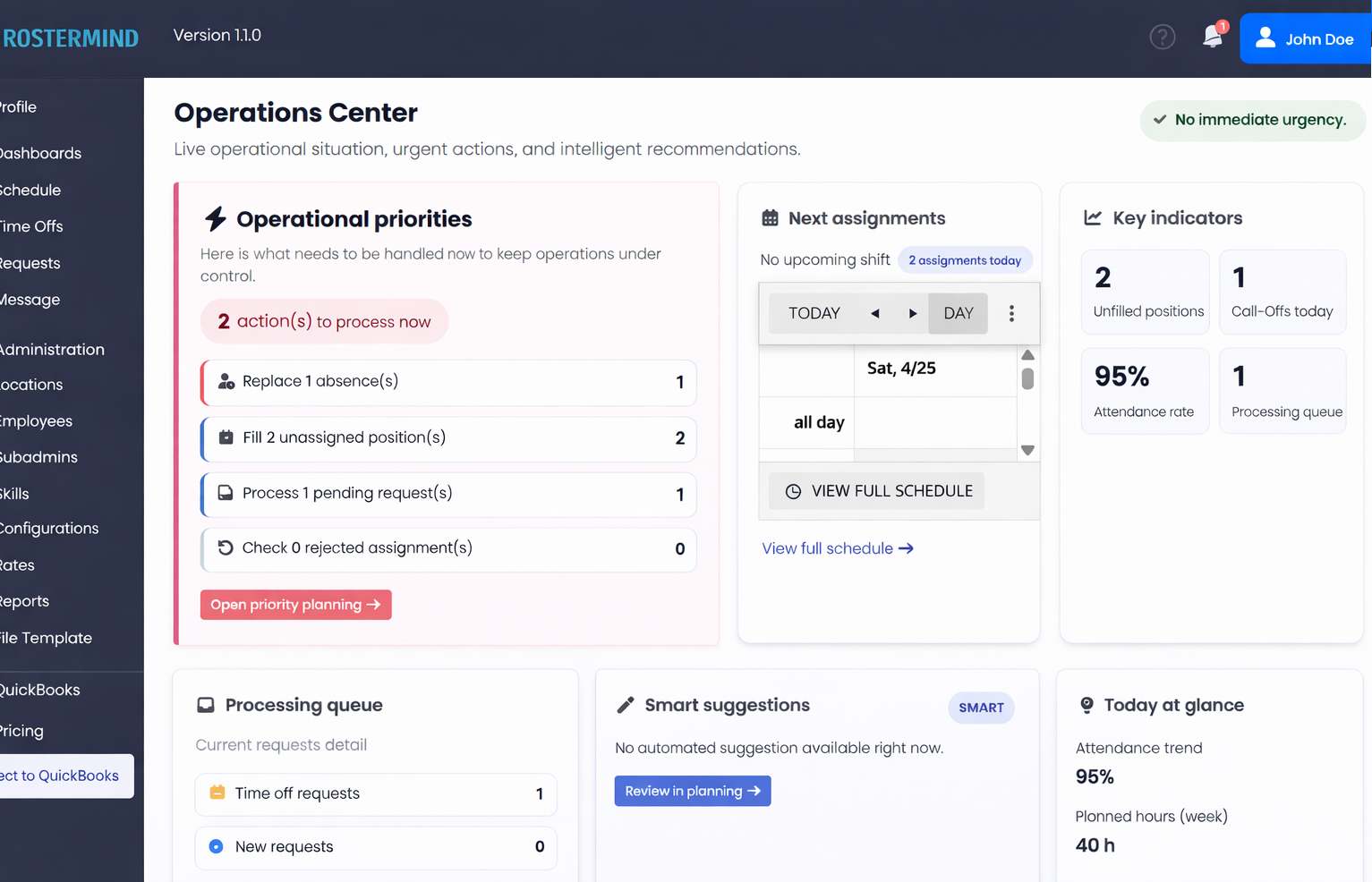
Example dashboard view. Indicators and labels can vary depending on role, plan, and tenant configuration.
Suggested review flow
- Open your dashboard view at the start of the day.
- Identify the highest-risk operational gaps first.
- Review staffing issues requiring immediate action.
- Review pending leave requests and assignment status issues.
- Use these indicators as a daily prioritization input.
Best practices
- Review the dashboard daily.
- Treat it as a decision-support view.
- Act first on issues that affect the same day or next shift cycle.
Troubleshooting
Too many priorities appear at once
Triage by urgency:
- service at risk
- same-day staffing gaps
- unresolved approvals
- lower-impact follow-ups
The dashboard does not match your operational reality
Review whether requests, availabilities, assignments, and leave statuses are up to date in the system.